A tool built for physical gauges
The first Gauge Generator grew out of DIY Arduino Dashboard in 2019. I was building a physical gauge cluster for Euro Truck Simulator and needed custom faces with different scales, indicators and markings from the car instrument cluster I was using as a base. Drawing every variation by hand soon stopped making sense, so I wrote a desktop application in C# to generate them.
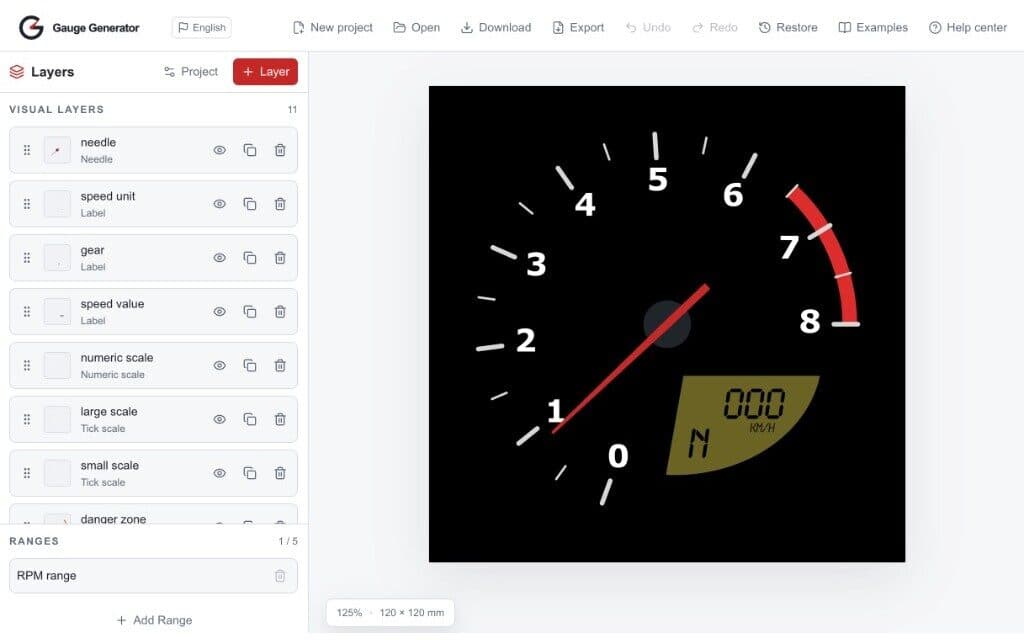
The application let me assemble a face from layers, configure its scales and export the finished image as a PNG. I had built it for one specific project, but I released the code and documentation. Years later, I found references from people using it to make their own gauges and scales. The idea had proved useful outside my workshop too.
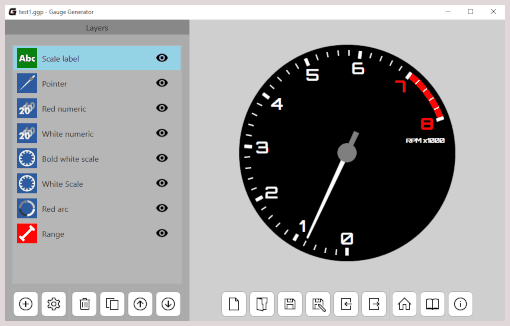
Returning seven years later
I returned to Gauge Generator in 2026 because I wanted a small project where I could test my AI-assisted development workflow away from large commercial systems. I already understood the domain, had a working version for reference and could judge whether the new implementation behaved as intended.
I did not carry over the old code or data model. I kept the idea and operating principles, then rebuilt the application as a browser-based editor. The entire project took exactly one week of work in the afternoons. During that week, I completed the editor, landing page, documentation, example projects and videos showing how those examples were built.
To fit that scope into a week, I worked with AI on a specification derived from the behaviour of the original application. I then divided it into small stages, each with its own definition of done. After every stage, I ran the project, checked the result and reviewed the code. Only then did I revise the plan for the next part.
AI accelerated the work without setting its direction
The old application was a useful reference, but its semantics did not always belong in the new design. AI tended to preserve earlier divisions or introduce abstractions where a simpler model suited a browser editor better. I had to keep checking both the code and the architectural direction.
The validation system exposed this problem clearly. One early implementation split its rules across several stages and ran them after every keystroke. As a result, the form rejected many temporary states that naturally occur while entering a valid value. Users could not finish typing because the application tried to validate incomplete input.
I moved control of validation into one place and delayed it until the complete value was available. I treated generated code as a proposal. The specification and regular reviews let me move quickly without giving up control over the application's behaviour.
The mathematics behind the face
Value mapping required the most design work. A linear scale distributes equal changes in value at equal intervals, but not every instrument behaves that way. In version 2.0, I added logarithmic scales and custom mappings based on multi-segment curves.
The custom curve editor works much like a fan-curve editor in a computer's BIOS. Users can split and join segments to control how much room each part of the value range occupies on the face. They can give more space to a section that needs finer detail and compress values that do not. The resulting mapping becomes the shared foundation for ticks, numbers, arcs, labels and needles, keeping every dependent element aligned.
I verified the calculations manually and with the unit tests in the repository. Manual checks helped me assess the editor's behaviour and the appearance of the scale, while the tests covered calculations and edge cases. Visual inspection alone was not enough: a small mapping error affected every layer connected to the Range.
Editing directly on the preview
The new React interface separates Ranges from visual layers. A Range describes geometry and value mapping but does not appear in the finished artwork. Visual layers use it as a shared coordinate system. Available layers include tick and numeric scales, arcs, labels, needles, shapes, lines and icons.
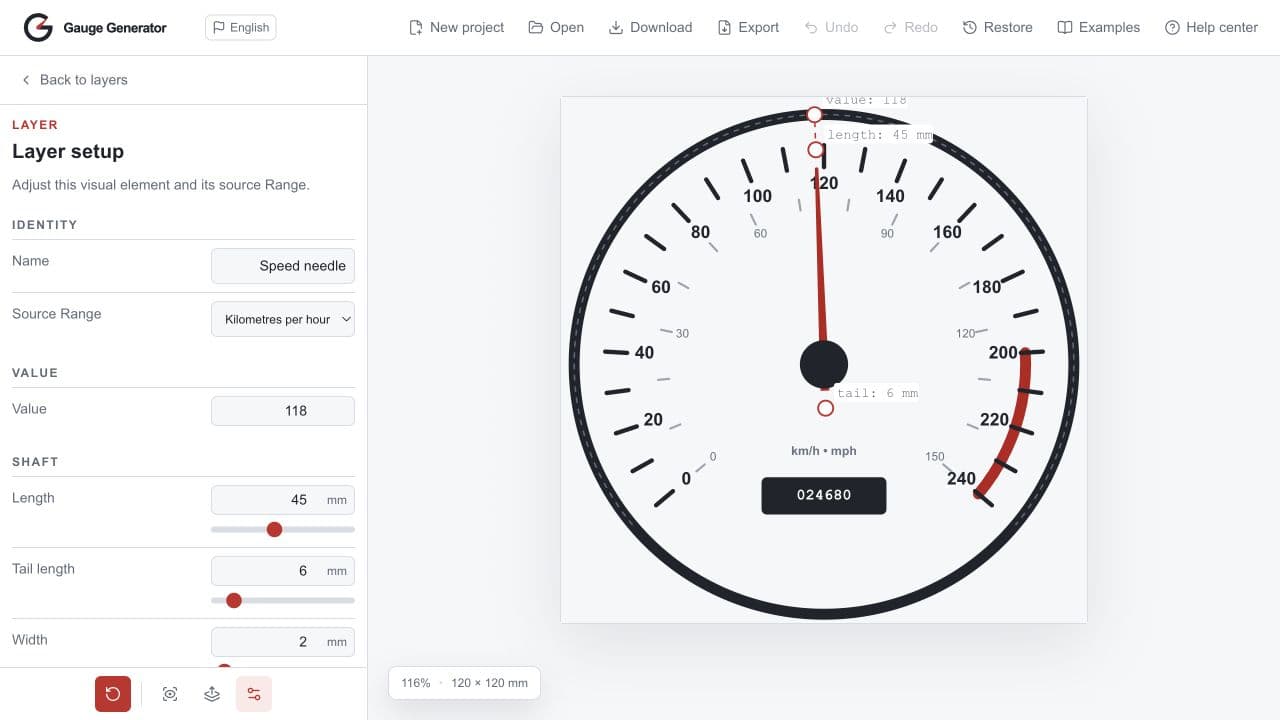
Properties can be changed in the sidebar, while many elements also provide handles directly on the preview. Dragging a handle and changing its corresponding field edit the same project data. The result appears immediately on a canvas fitted to the available space. For more involved projects, users can hide, duplicate and reorder layers, temporarily isolate an element, and undo or redo changes.
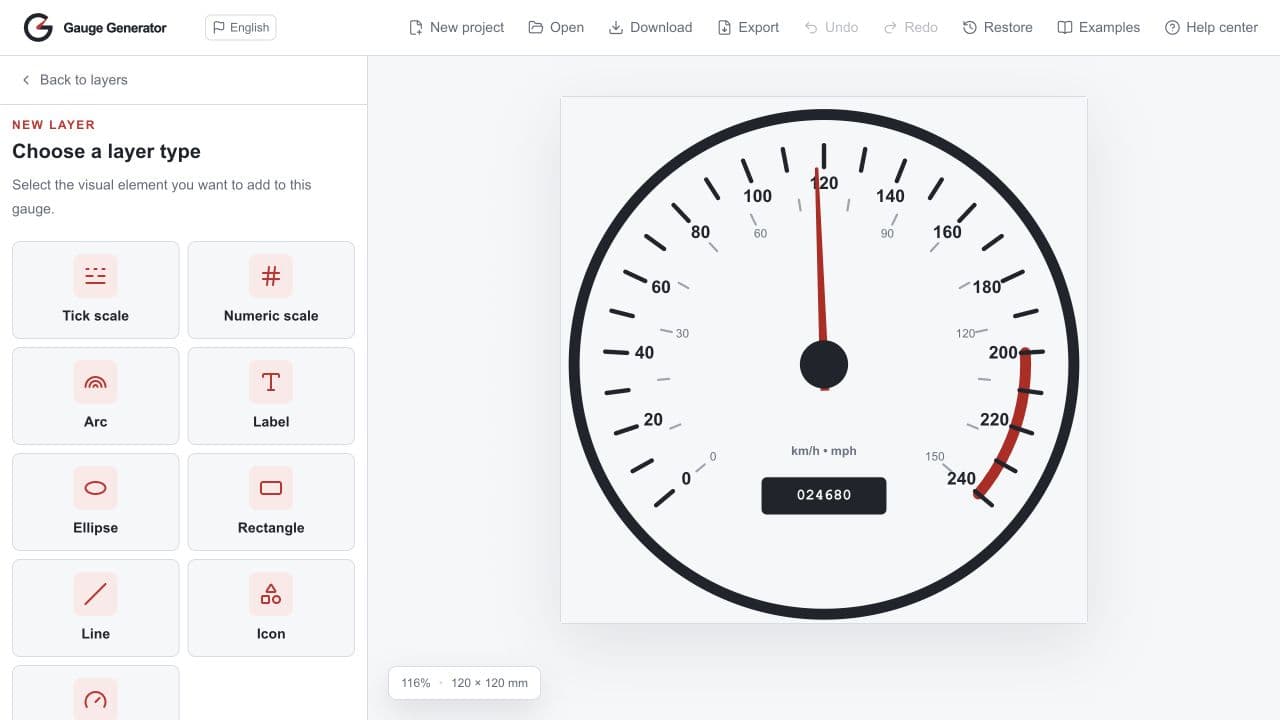
The editor uses physical dimensions measured in millimetres, which matters when a gauge face is intended for printing. Finished work can be exported as PNG, SVG or PDF. SVG keeps the artwork in vector form, while PDF can produce either the complete design or individual layers for printing.
No account and no proprietary project format
The application runs entirely in the browser and requires no registration. Projects and automatic snapshots remain local instead of being sent to a cloud service. An editable project is a readable JSON document that users can download, keep and open again later.
I consider Gauge Generator 2.0 a completed experiment. In one week, I tested a process built around a jointly written specification, short stages and regular reviews. The result is a public tool that anyone can use without installing or paying for anything. I am not planning another major development phase, but the code remains open to fixes and contributions.